/

SALESFORCE X GALILEO

How do you design AI recommendations that inform students without taking the decision away from them?

How do you design AI recommendations that inform students without taking the decision away from them?

Context

TIMELINE

Sep 2025 - Dec 2025

INDUSTRY

EdTech / Higher Education

ROLE

Lead Product Designer

TEAM

8 Student Designers, Salesforce Experience Design Team

I led the design of the Overview and Academic Trajectory sections of Galileo, two of the more complex features in the system, and honestly the ones I spent the most time wrestling with. Galileo was built in collaboration with the Salesforce Experience Design team, as part of a semester-long design studio at IU. It was a 0→1 concept exploring how AI could support academic decision-making for undeclared undergraduates without making the decisions for them.

I co-led design end-to-end alongside one other designer. My work centered on interaction design, information architecture, AI interaction patterns and figuring out how to make the AI recommendations feel useful rather than prescriptive, which, as it turns out, is harder than it sounds.

interaction patterns

The decisions that shaped how Galileo thinks with students

Galileo had a lot of moving parts. Course discovery, shortlisting, scheduling and trajectory planning all had to work as a connected system, not a collection of screens.

A lot of the interaction patterns that made that system feel coherent came out of decisions made at the component level. What to show, what to hide, when to let AI speak and when to stay out of the way. These are the patterns that shaped the experience most.

UNDERSTANDING THE PROBLEM

WHY ACADEMIC PLANNING IS DIFFICULT

Our team conducted 16 student interviews, a literature review and a digital ethnographic study across Reddit and RateMyProfessor. What kept coming up wasn't a lack of information. It was a lack of meaning.

High-impact decisions over time

Early course choices shape workload balance, prerequisites and eligibility for majors down the line.

Information without interpretation

University tools surface requirements and data but don't help students understand what any of it means for their specific path.

Fragmented academic systems

Students piece together their academic picture from degree audits, course catalogs, enrollment portals and peer advice, none of which talk to each other.

Decision fatigue and uncertainty

Scattered information forces students to synthesize academic data manually, increasing cognitive load and reducing confidence in their choices.

HOW MIGHT WE HELP UNDECLARED UNDERGRADUATES MAKE SENSE OF THEIR ACADEMIC JOURNEY, WITHOUT ADDING TO THE COMPLEXITY THEY ARE ALREADY NAVIGATING?

HOW MIGHT WE HELP UNDECLARED UNDERGRADUATES MAKE SENSE OF THEIR ACADEMIC JOURNEY, WITHOUT ADDING TO THE COMPLEXITY THEY ARE ALREADY NAVIGATING?

THE PRODUCT

HOW GALILEO IS STRUCTURED

Galileo is built around five connected sections. Students start with an Overview that gives them a quick read on where they stand academically. From there they can browse and discover courses, shortlist ones they are interested in and plan their semester visually. The final section, Academic Trajectory, is where the system steps back and helps students reflect on where their academic choices are pointing them.

The sections are designed to work in sequence but don't have to be used that way. A student who already knows what courses they want can go straight to the Semester Planner. One who is feeling lost about their major can start at Academic Trajectory. The flow follows the student, not the other way around.

Example of a student's user flow while interacting with Galileo

This is one path through Galileo. We designed the system so that every student can enter and navigate it based on where they are in their planning process, not where we think they should start.

I am going to go deep on the two sections I led personally. If you want to see the full product first, the rest of Galileo is covered at the end.

OVERVIEW DASHBOARD- DESIGNING A SCREEN THAT KNOWS WHEN TO STOP

The Overview is the first thing a student sees when they open Galileo. It had to earn their attention without wasting it.

The Overview section of Galileo .

Our early iterations of the Overview had a lot going on, an academic compass visualizing study trajectory, quick links to university apps, advisor contact, course suggestions, an onboarding quiz snippet and multiple CTAs pulling the student in different directions. It looked thorough but it wasn't useful.

The first round of feedback from the Salesforce Experience Design team made that clear. There was no set action a student could take. That reframed everything. Our north star became one principle: every section needs to offer something actionable.

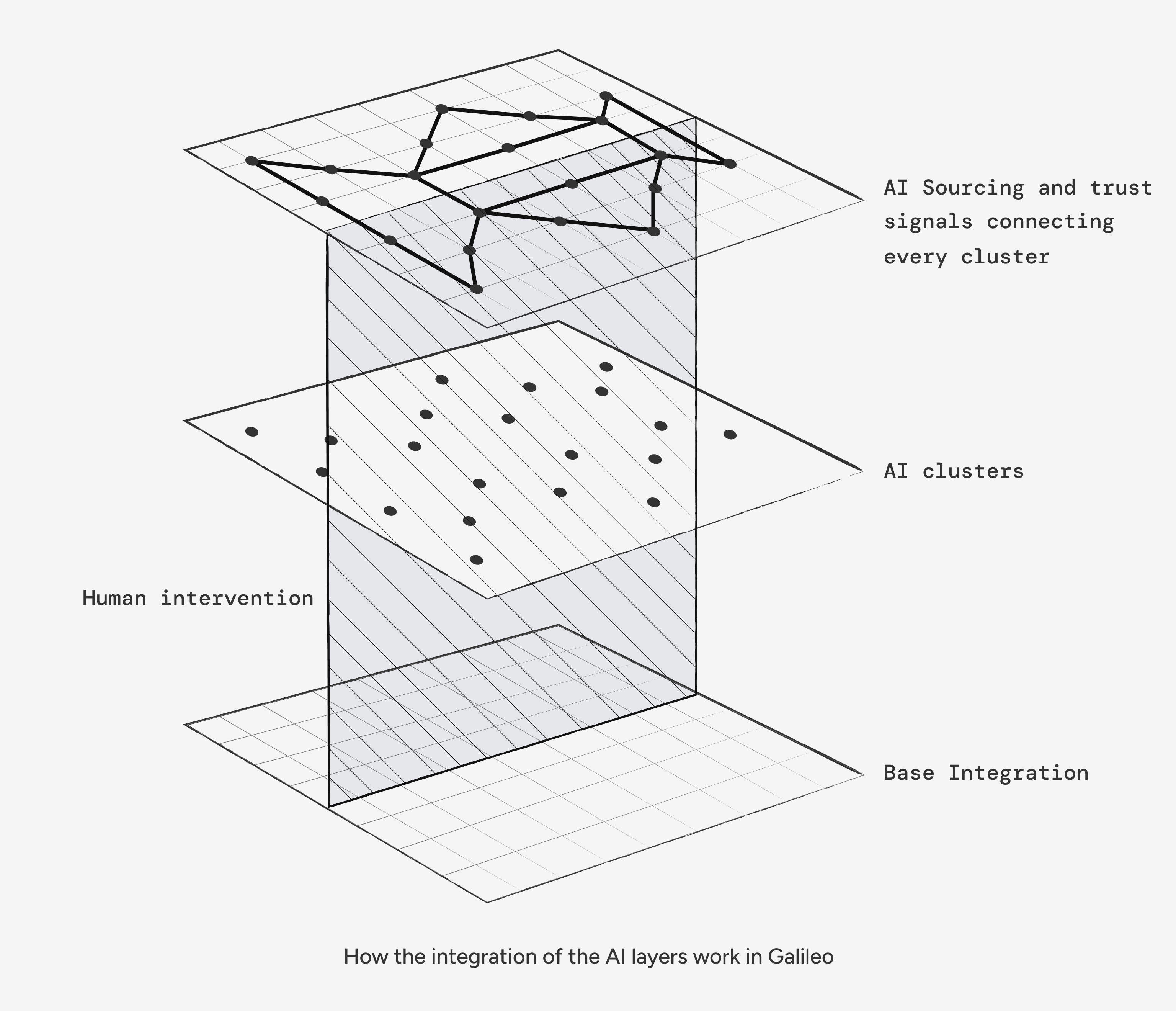
First iteration of Asimov with just Slack channels connected as knowledge sources.

For the Overview that meant cutting almost everything. What stayed was GPA, a GenEd requirement tracker and an Academic Progress section. The only additional information is enrollment-related deadlines that are actually time-sensitive.

The hardest call was the Academic Progress section. The same view appears in Academic Trajectory and I was unsure whether it would feel repetitive. But a student who already knows what they want should not have to navigate through multiple sections just to confirm they are on track. The Overview needed to work for that student too.

ACADEMIC TRAJECTORY- THE SECTION WHERE AI HAD THE MOST TO SAY

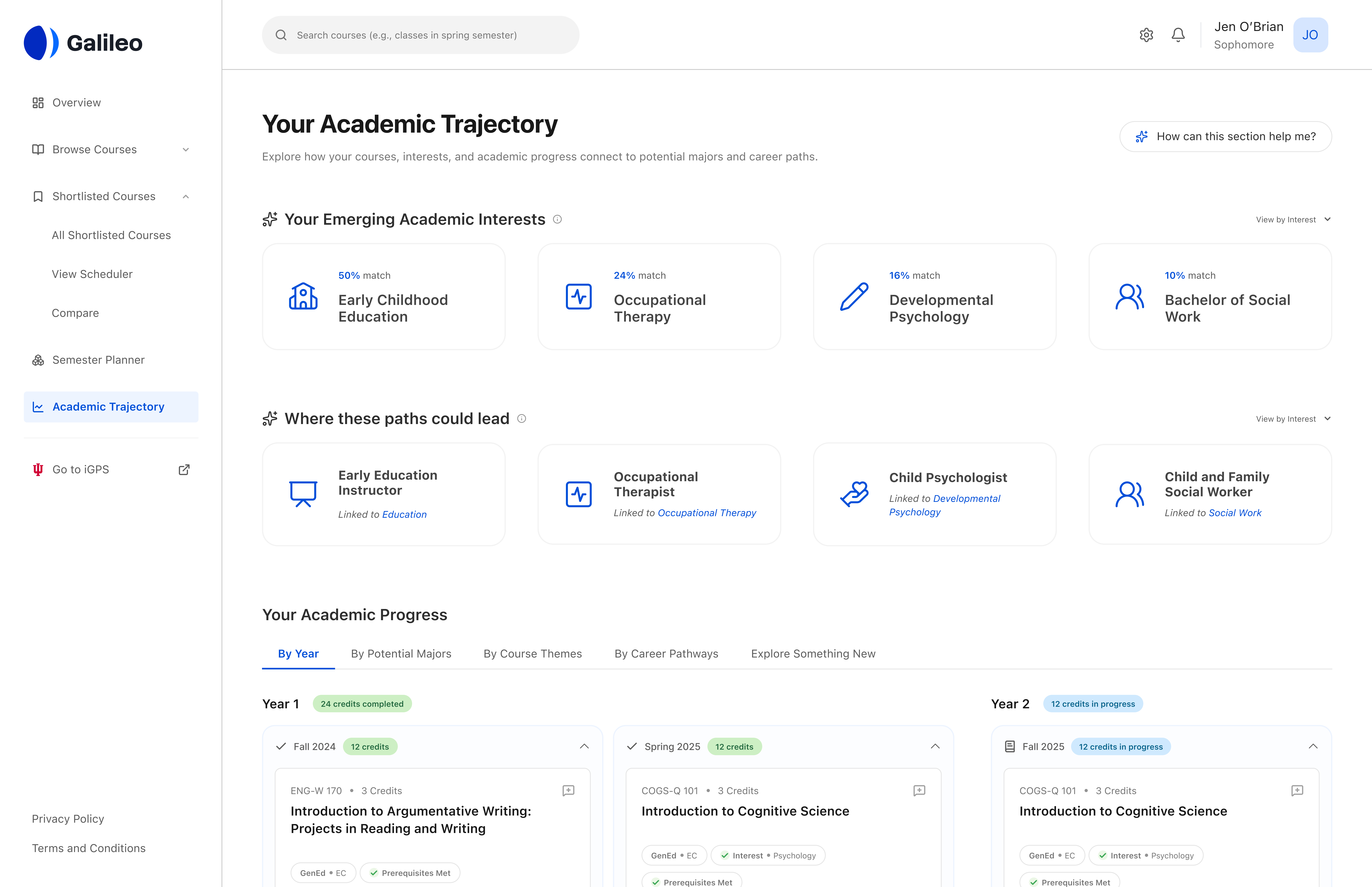
Academic Trajectory is where Galileo steps back and asks a bigger question, not just what courses a student has taken, but what those choices might be pointing toward.

Four ways to read the same data

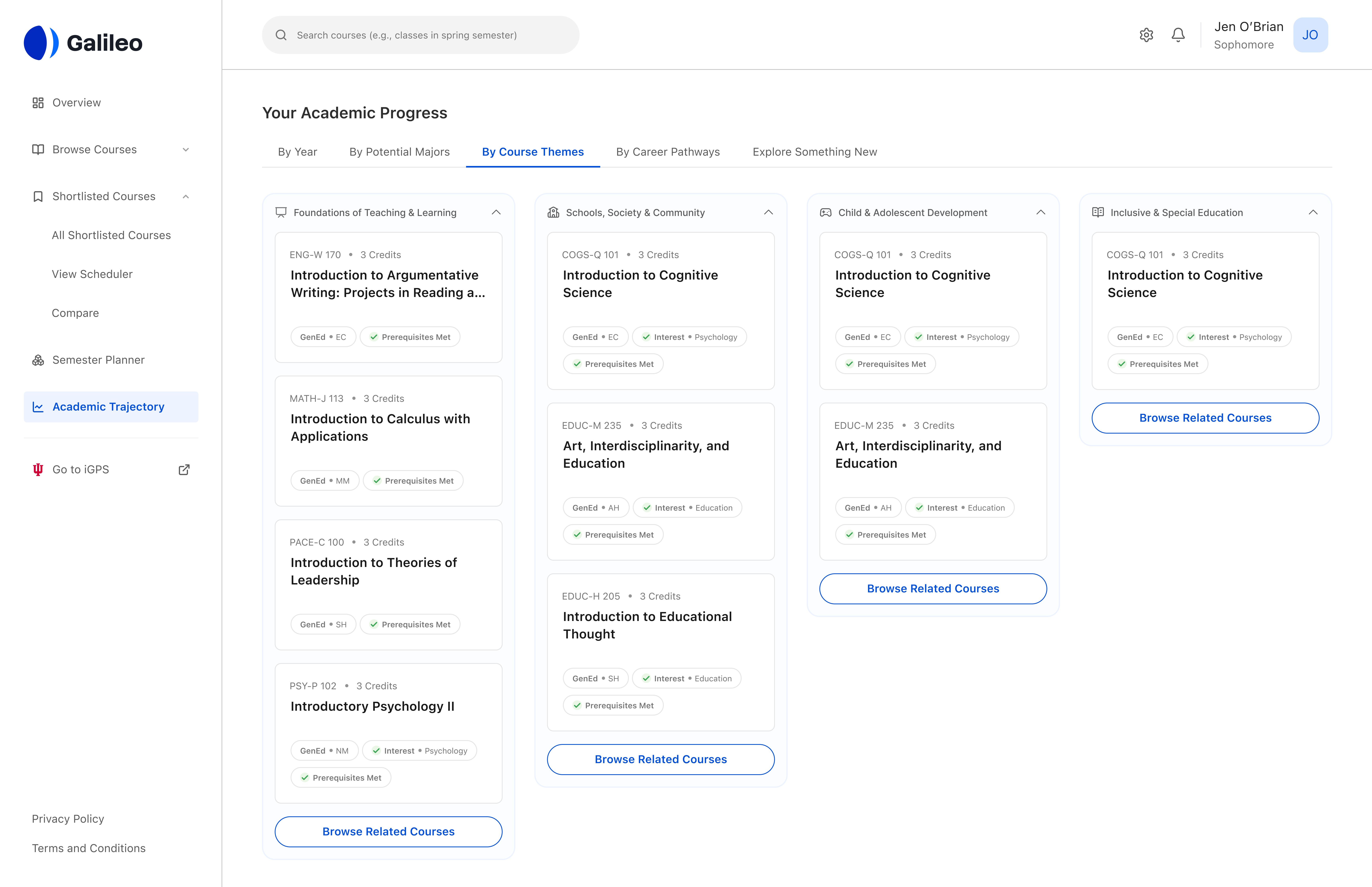
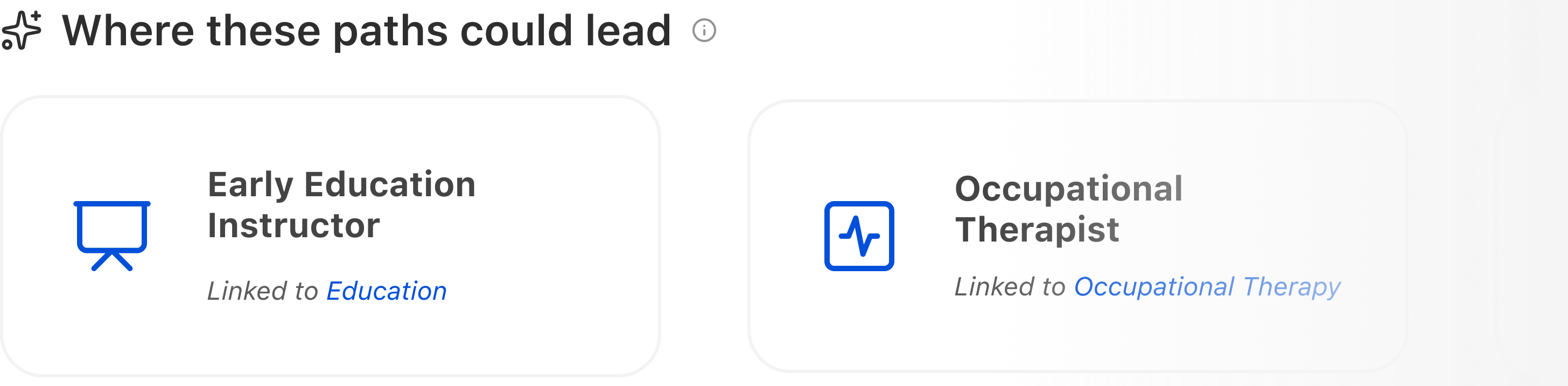
The Academic Progress section below gives students four lenses to view their course history: by year, by potential major, by course theme and by career pathway. The data is identical across all four views. What changes is the interpretive frame.

This came directly from a research insight, students didn't lack information, they lacked ways to connect it to their own goals. A student trying to figure out if they should pursue Education as a major sees something very different when their courses are grouped by potential major versus grouped by year. Both views are true. They just answer different questions.

The Overview section of Galileo .

This was the most complex section to design and the one I spent the most time on. The core challenge was figuring out how to let AI surface meaningful patterns from a student's course history without making it feel like the system had already decided something for them.

Designing for AI transparency

Because the entire Trajectory section is AI-generated, I had to be deliberate about how that was communicated. Students in our research were clear, they wanted to know when AI was involved and they did not want to feel like the system was making decisions for them.

I used three patterns to address this.

  1. The Summarize AI icon appears on every AI-generated element to identify it as such.

  2. Disclosure copy beneath the major and career suggestions explains what data was used and how.

  3. A contextual tooltip on the page header, 'How can this section help me?', reframes the entire section as a thinking tool rather than a verdict. The goal was to make the AI feel like a collaborator, not an authority.

Summarize icon marking AI-generated content with supporting disclosure copy to inform students how the content was created and how to use it.

The visualization problem

For a long time I was stuck on how to visually represent the AI's major and career suggestions. The first idea was a radar chart, it felt like the right format for showing multiple dimensions of a student's academic profile. But we couldn't fix the axes. Every student's journey is different, which meant the chart would look different for every student and there was no consistent way to interpret it. It was also adding cognitive load, which was the exact thing we were trying to reduce.

Iteration Round 1: Sketching out how can radar charts help visualize the academic trajectory of the student.
Iteration Round 2: Exploring donut charts for visualizations.

We moved to a donut chart. Simpler, more familiar. But the math wasn't adding up. During evaluations, students couldn't figure out how the percentages were being distributed across the segments. The visualization was once again creating confusion rather than clarity.

VISUAL LANGUAGE AND COHESION

MAKING THE SYSTEM FEEL LIKE ONE PRODUCT

With seven designers working across different sections, visual consistency didn't happen automatically. As one of two lead designers, part of my role was making sure that component decisions made in one section translated coherently across the whole product.

The CTAs on the card changed depending on what the student needed to do at that point in their journey. On the Course Search page, the priority was exploration — so the card offered two options, shortlist or view more details. On the Scheduler, the student had already made their choice. The only action left was to finalize. So that was the only CTA we gave them.

Design decisions on the CTA s of the cards across different sections

Course cards are another good example. They appear across Browse, Shortlist and Academic Trajectory and each surface asks something slightly different from them. The component had to be flexible enough to adapt without losing its identity. Getting that right at the component level meant the product could feel like a system rather than a collection of screens.

Design decisions on the layout of the cards across different sections
THE REST OF THE PRODUCT

THE OTHER THREE SECTIONS

Course Discovery, Shortlisting and the Semester Planner round out the product. I co-led the visual and interaction coherence across these sections. The design decisions within them were owned by other team members.

Browse Courses

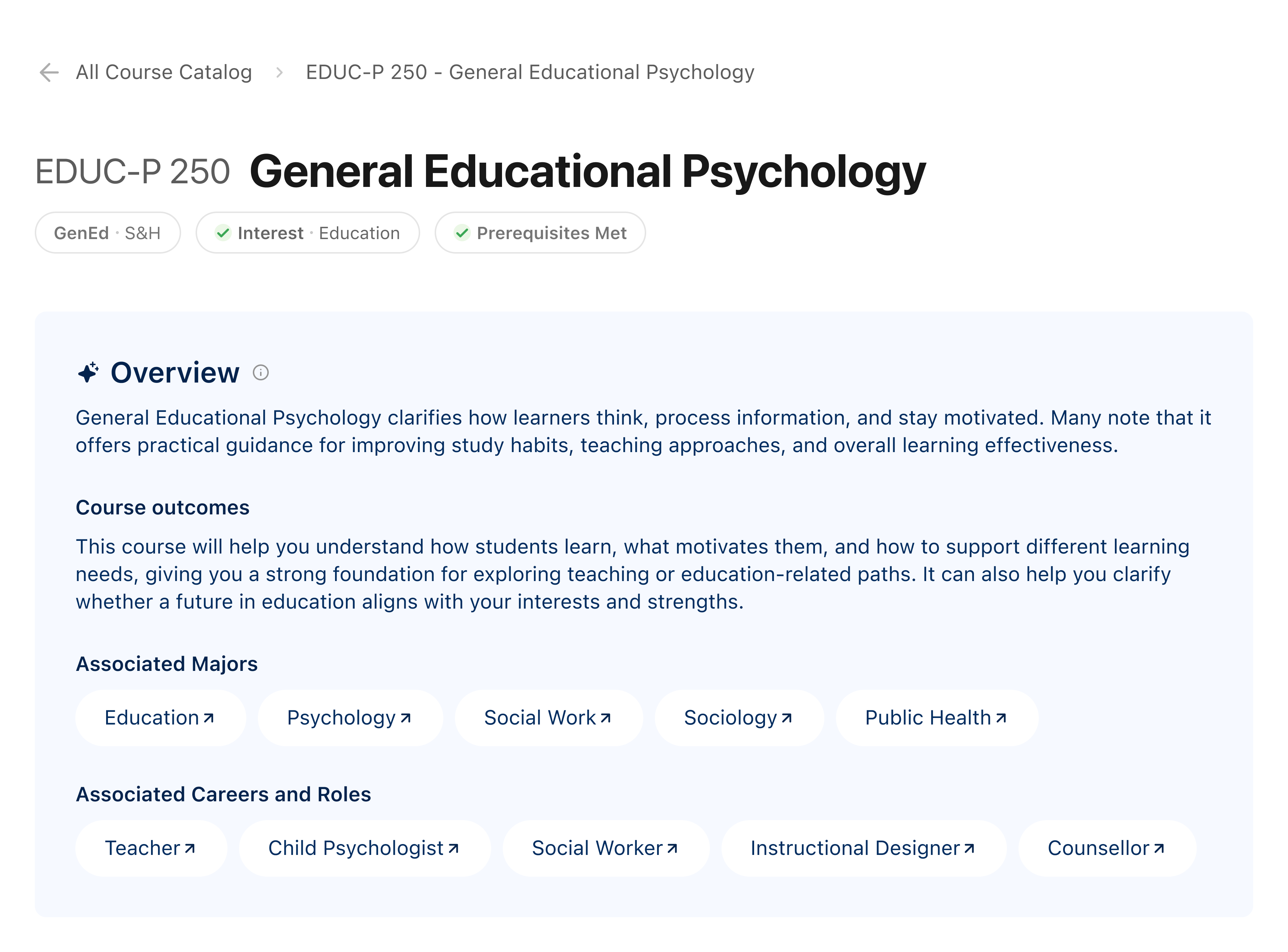
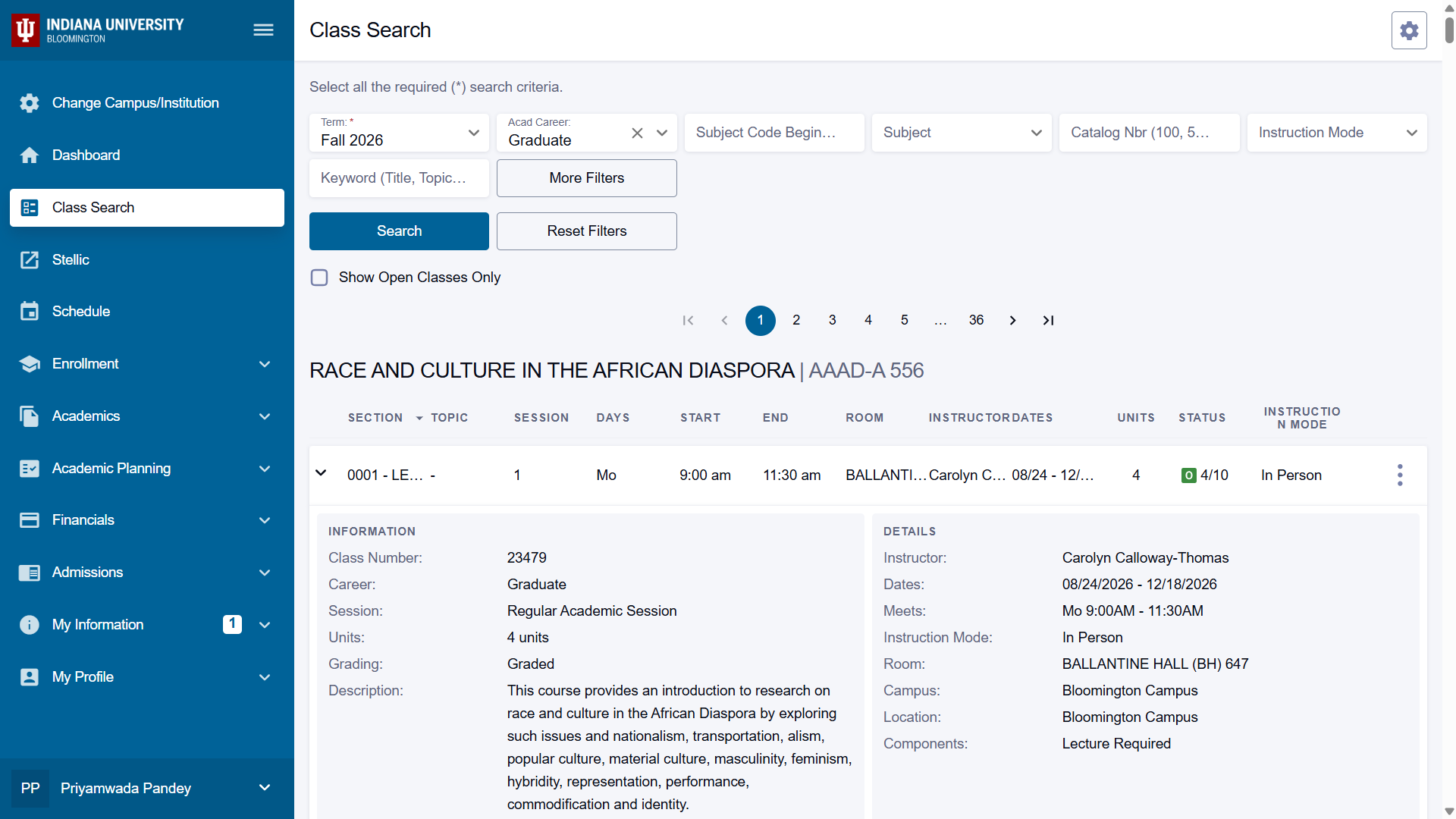
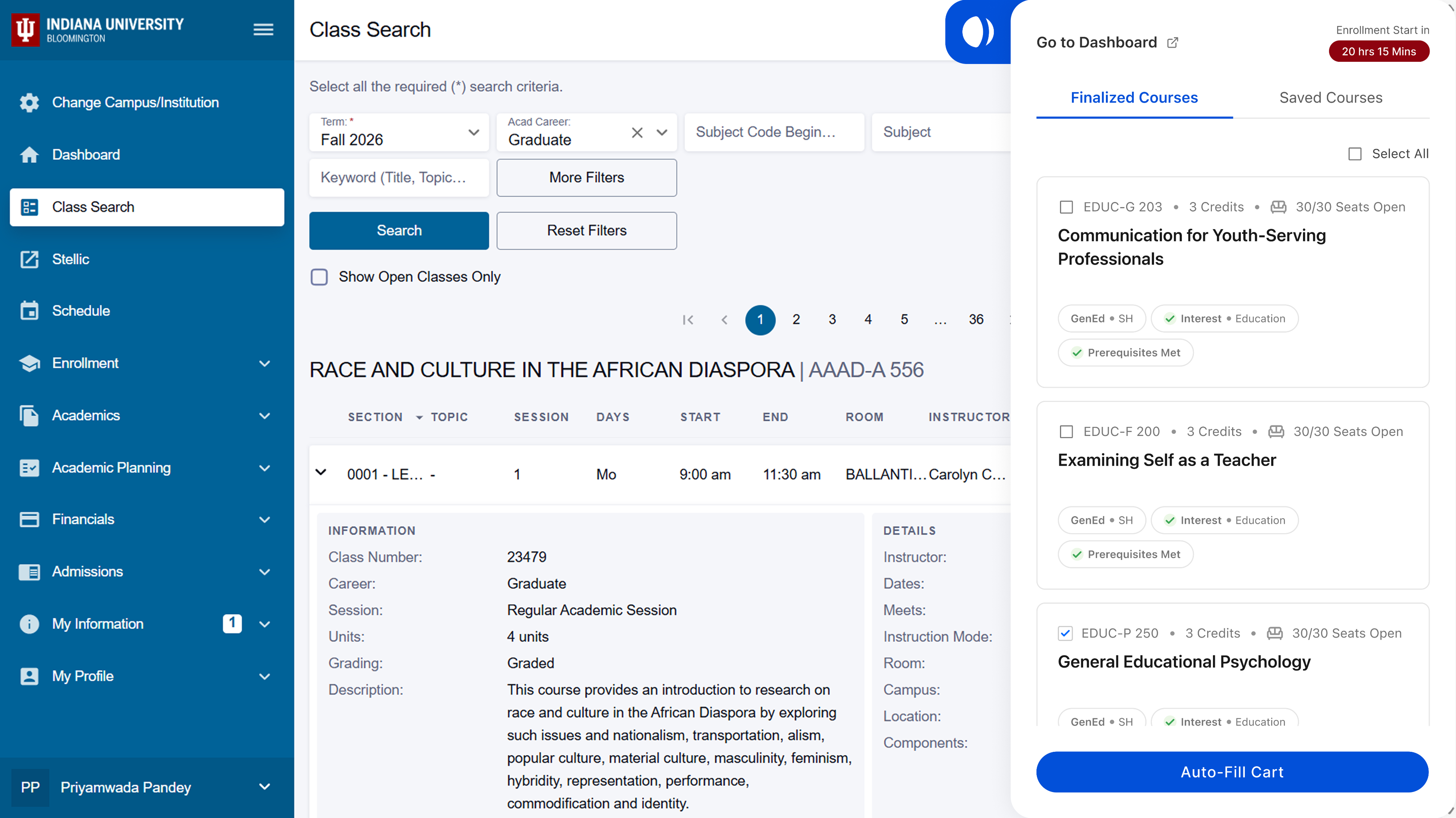
Students currently discover interesting courses mostly through word of mouth and professor recommendations. The Browse section gives that process some structure, surfacing courses based on GenEd requirements, student interests and peer popularity. AI is used here to connect student interests to relevant courses, not to make the choice for them.

The course discovery flow of Galileo .

Shortlisted Courses

Once students find courses they like, they need a space to evaluate them relatively rather than in isolation. Shortlisting works like a consideration set — students save courses across semesters, compare them side by side and narrow down based on factors like load, timing and outcomes. We deliberately kept AI out of this section. Feedback from career coaches during evaluation made it clear that learning to make these comparisons independently is a skill students need to develop. AI recommendations here would have taken that away.

The Shortlisted Course and Scheduler flow of Galileo .

Semester Planner

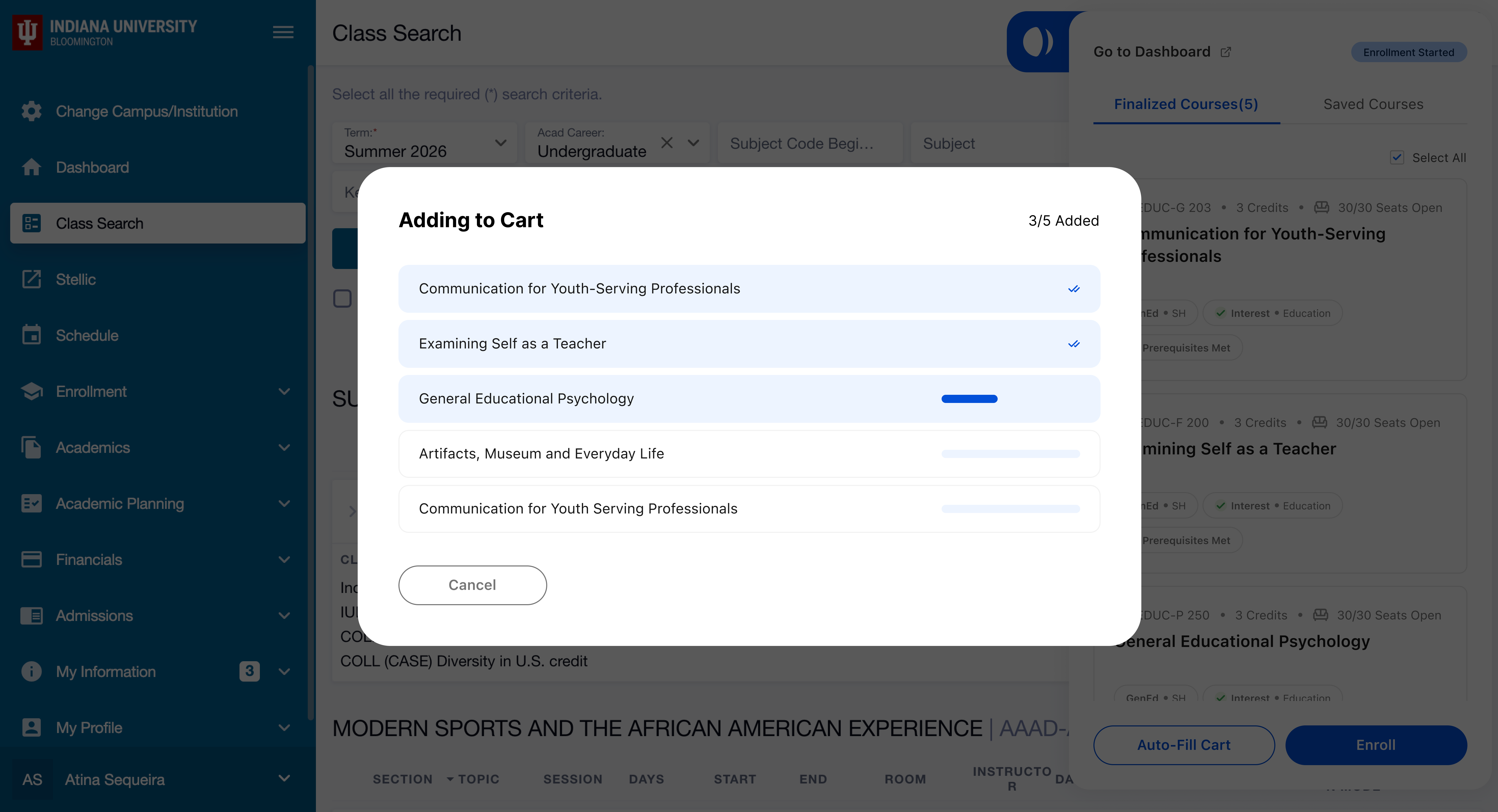
The Semester Planner is where decisions become commitments. Students drag shortlisted courses into semester slots, with GenEd requirements kept persistently visible at the top because evaluations showed students consistently lose track of pending requirements at the point of finalizing schedules. A sticky panel on the right holds all saved courses so nothing gets lost mid-planning.

The Semester Planner section of Galileo
REFLECTION

WHAT I WOULD DO DIFFERENTLY

The heuristic evaluation and the feedback session with the Salesforce Experience Design team were the two formal validation points for this project. Both were useful but they came late in the process. By the time we were incorporating feedback, most of the structural decisions had already been made.

The most significant piece of feedback we received came from peers during our final presentation. We had thought carefully about how AI should behave in Galileo. We had not thought carefully enough about where a human advisor fits into that picture.

The question of how to keep a college advisor meaningfully in the loop — not just as a resource students could optionally contact, but as an active participant in the planning process, was something we acknowledged as future scope. In hindsight I wish we had considered it earlier. Not necessarily designed it, but used it to pressure-test some of our AI decisions along the way.

The most significant piece of feedback we received came from peers during our final presentation. We had thought carefully about how AI should behave in Galileo. We had not thought carefully enough about where a human advisor fits into that picture.

The question of how to keep a college advisor meaningfully in the loop — not just as a resource students could optionally contact, but as an active participant in the planning process, was something we acknowledged as future scope. In hindsight I wish we had considered it earlier. Not necessarily designed it, but used it to pressure-test some of our AI decisions along the way.

The SF student team with Scott Pitkin, Director of User Experience at Salesforce.

The team made a conscious call early on to solve the core problem areas completely rather than spread thin across everything. I stand by that decision. But the human-in-loop question is one I keep coming back to.

WHAT THIS PROJECT TAUGHT ME

Most of my previous work has been done either as a sole designer or as part of a cross-functional team where design decisions were still largely mine to make. This was the first time I had to design as part of a design team. Keeping visual and interaction language consistent across sections that different people were building in parallel is a different kind of problem than I had solved before. It is less about individual craft and more about communication, shared principles and knowing when to push back on a decision that works in isolation but breaks the system.

I underestimated how much of that work happens in the gaps between features rather than inside them.